Create your account
Sign in with Google or with your email. We send you a sign-in link, no password to remember. The first time you sign in, Hiera walks you through a short setup and creates your workspace: the home for your projects, teammates and settings.
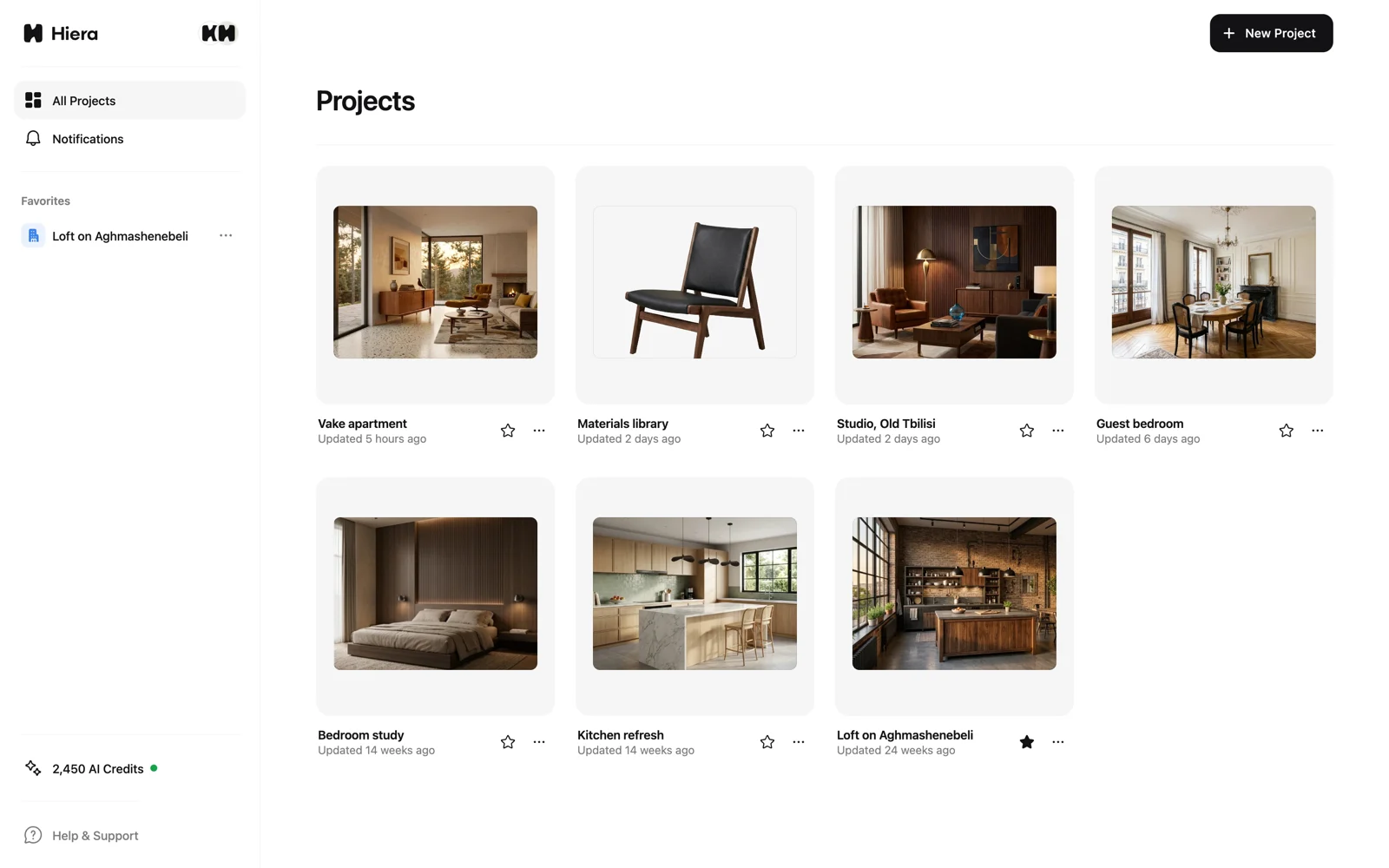
Create your first project
Projects keep related work together: one per client, room or concept, whatever fits how you work. Create one from the dashboard and you land on its canvas, ready to go.
- Open your dashboardProjects lives in the sidebar on the left.
- Create a projectGive it a name you will recognize later.
- Start on the canvas
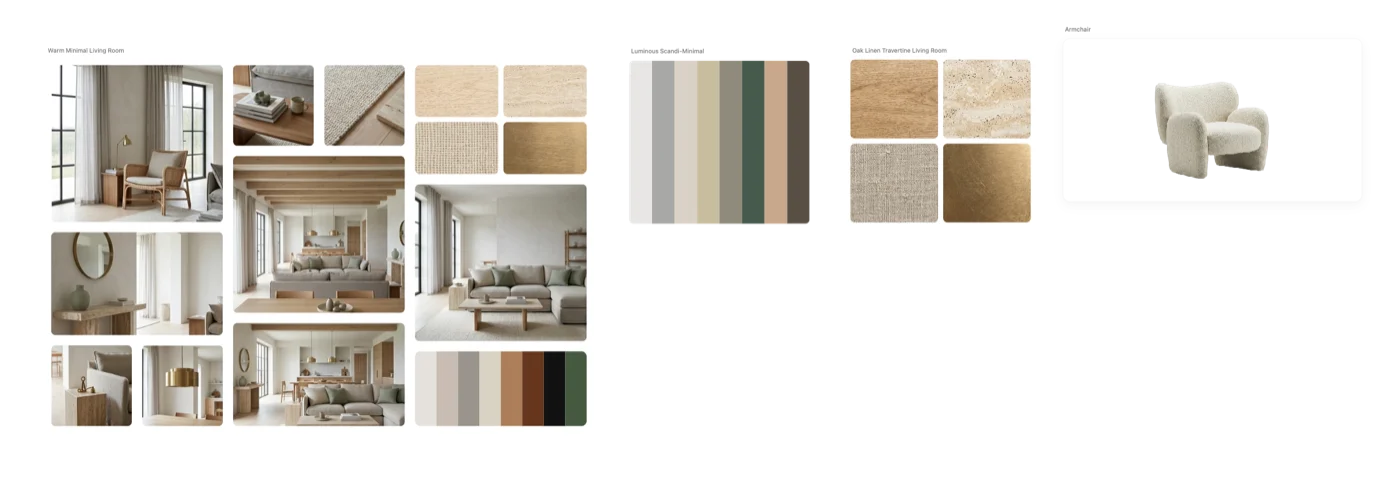
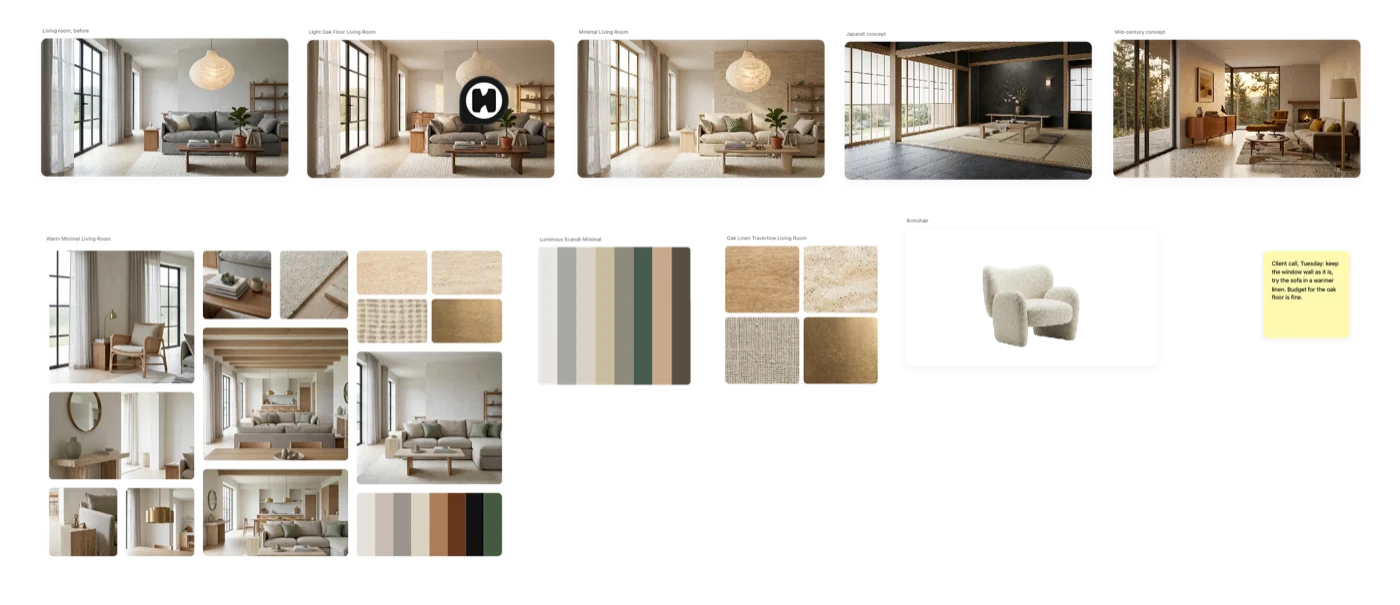
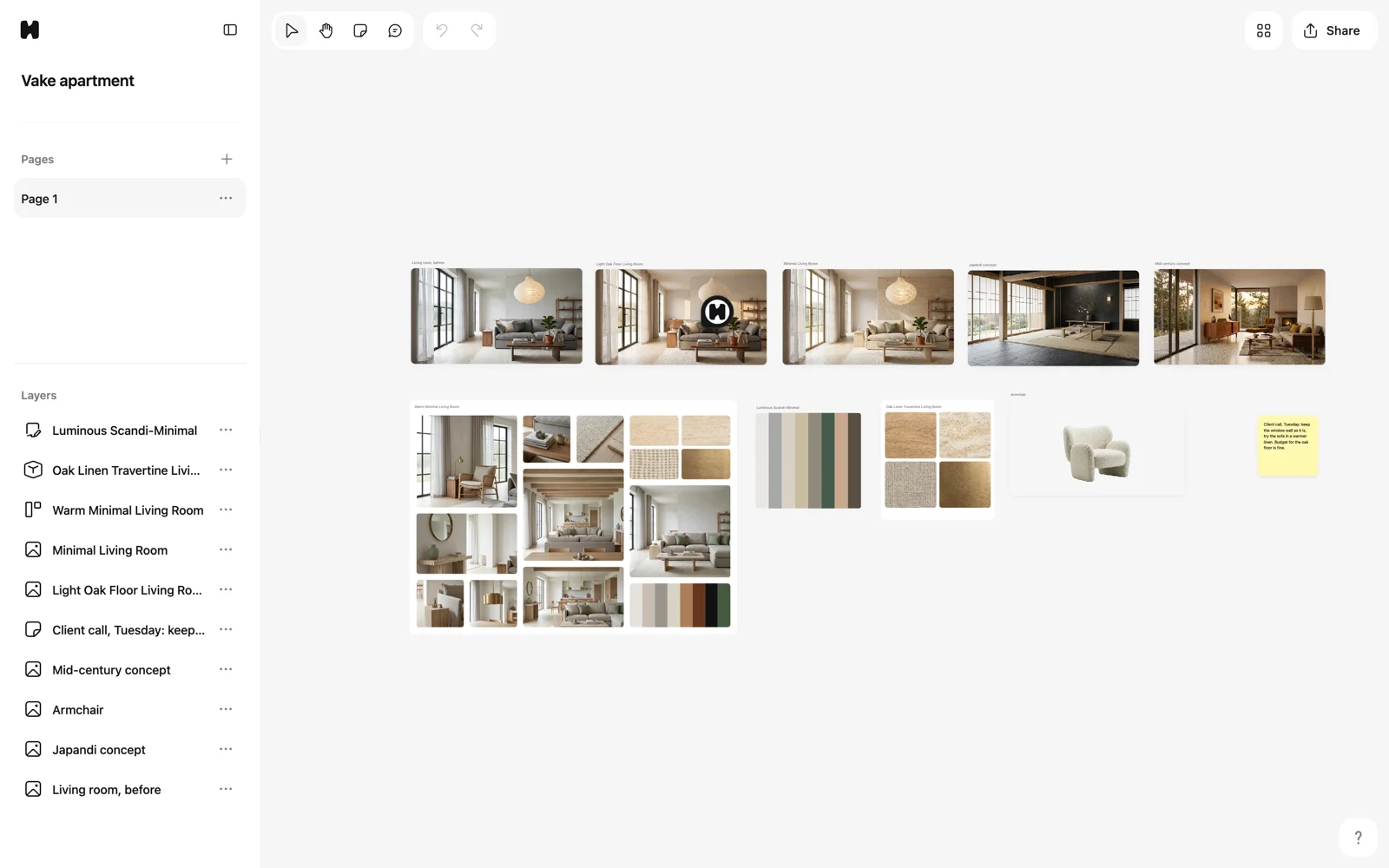
Every project opens as an infinite canvas, your working surface in Hiera.
Meet the infinite canvas
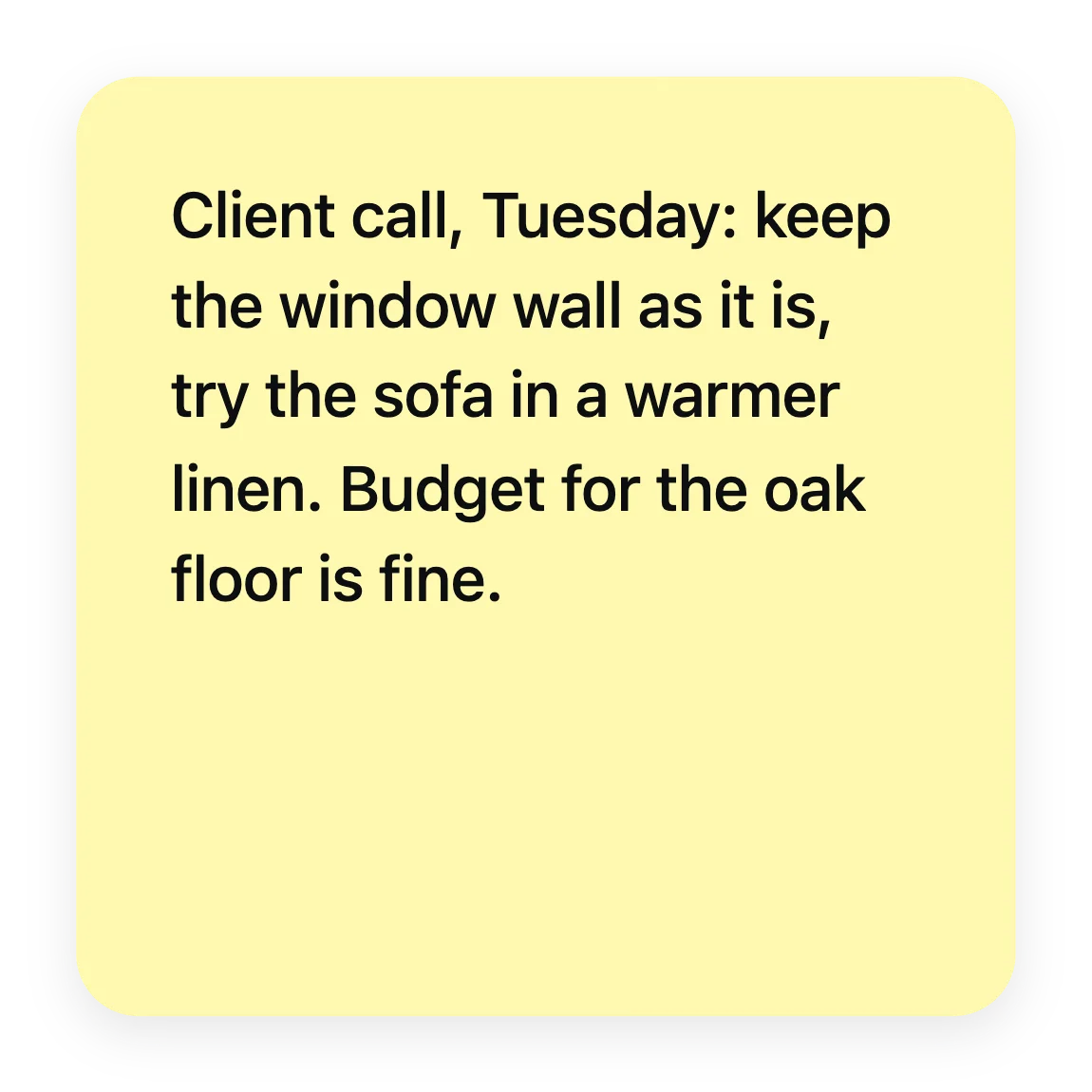
The canvas has no edges and no fixed pages. Drop in reference photos, arrange moodboards, generate AI visuals and leave notes, all side by side, the way you would pin things to a studio wall. Pan with the hand tool H or your trackpad, and zoom to move between the big picture and the details. Everything saves automatically as you work.
Organize with pages
One canvas can get crowded as a project grows. Pages split a project into separate canvases: concept vs. final presentation, or one page per room. The Pages list lives in the left sidebar: add a page with the plus button, rename it with a double-click, and manage it from the … menu. Each page keeps its own canvas, and everything still autosaves.
The toolbar at a glance
The toolbar at the top of the canvas is where your everyday tools live, and each one has a single-key shortcut: select V, hand H, comment C and note N. From the same toolbar you can also add building blocks to the canvas: an artboard A, a color palette P, a materials board M or a moodboard B.
Shortcuts work whenever you are not typing in a text field, and switching tools with one key quickly becomes muscle memory.
Where to go next
Once you are comfortable moving around, the real fun starts: generate design ideas with AI or share your file and gather feedback.